
Setup Microsoft 365 email on iPhone or iPad
 | Note: It is recommended to use the Outlook app for iOS, for your business email. To get Outlook, use your phone’s camera to scan the QR code on the left. |
To setup Microsoft 365 business email on your iOS mail app for (iPhone or iPad) Follow the steps below :
1
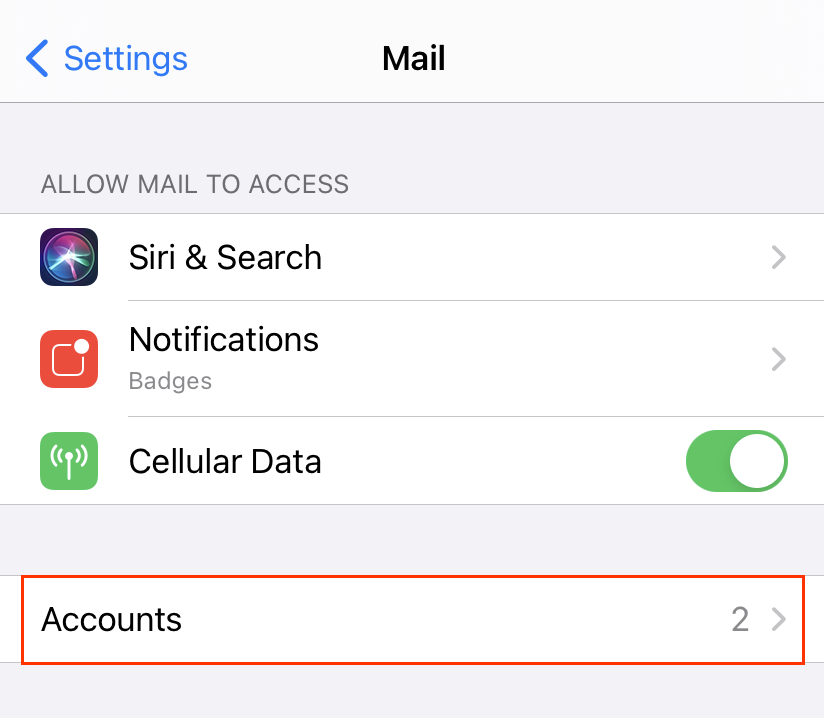
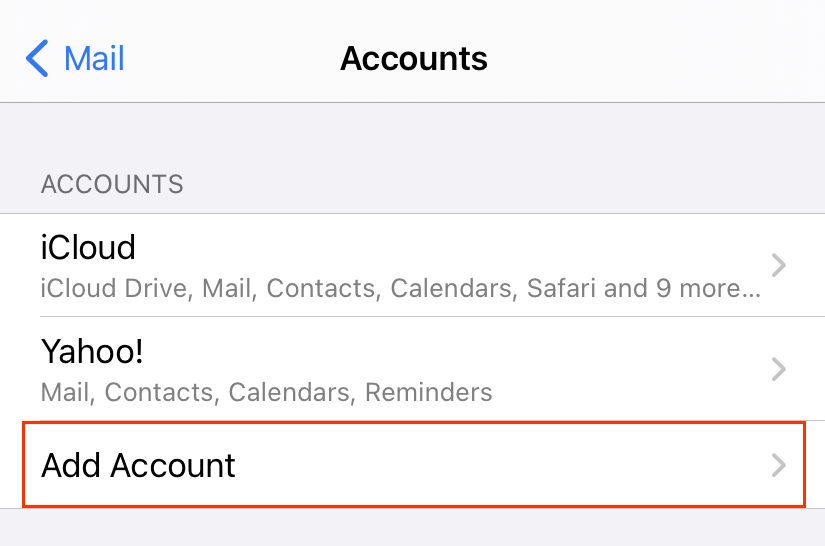
On your iPhone or iPad, Go to Settings then tap Mail > Accounts > Add account
Note: On some iOS editions, you need to go to Mail > Accounts >Passwords & Accounts.
2
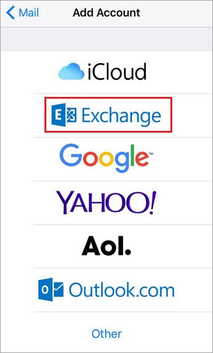
In the Add Account page, tap Exchange or Microsoft Exchange
3
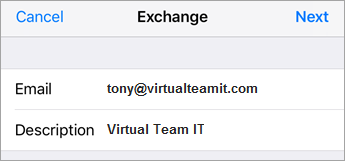
Enter your Microsoft 365 full email address, (ex: ahmad@virtualteamit.com), and a description (e.g. Company Name) and then tap Next
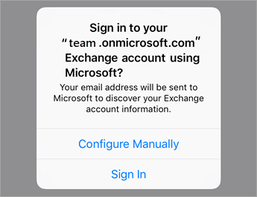
Tap Sign In to confirm you want to use your Microsoft Exchange account.
4
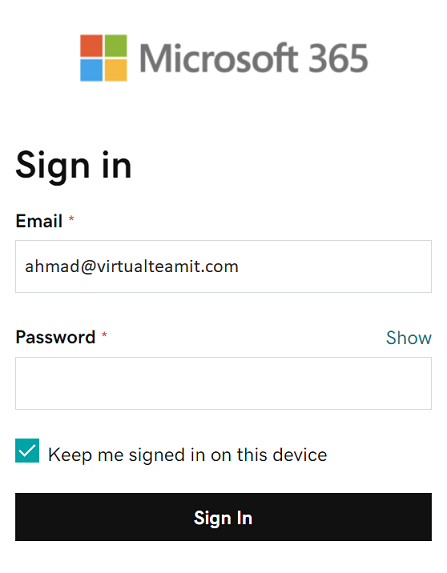
Enter your Password and check Keep me signed in on this device, then tap Sign In. (You might need to select your account type as Work or school, not Personal, to continue.)
5
Mail app will request permissions to access your email, Tap Accept.
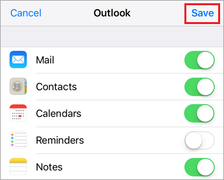
By default, Mail, Contacts, and Calendar information are synchronized. Tap Save, or Choose the services you want to sync with your iOS device and tap Save.
Your Office 365 email is now set up on your iPhone/iPad native mail app. To make sure you can send messages, compose an email and send it to yourself.
Please note that setting a security passcode on your device is mandatory to view your email on iPhone.
– If you’re prompted to create a passcode, tap Continue and type a numeric passcode.
– If you’re prompted and don’t set up a passcode, you can’t view the email on your device. You can also set up a passcode later in your settings.
